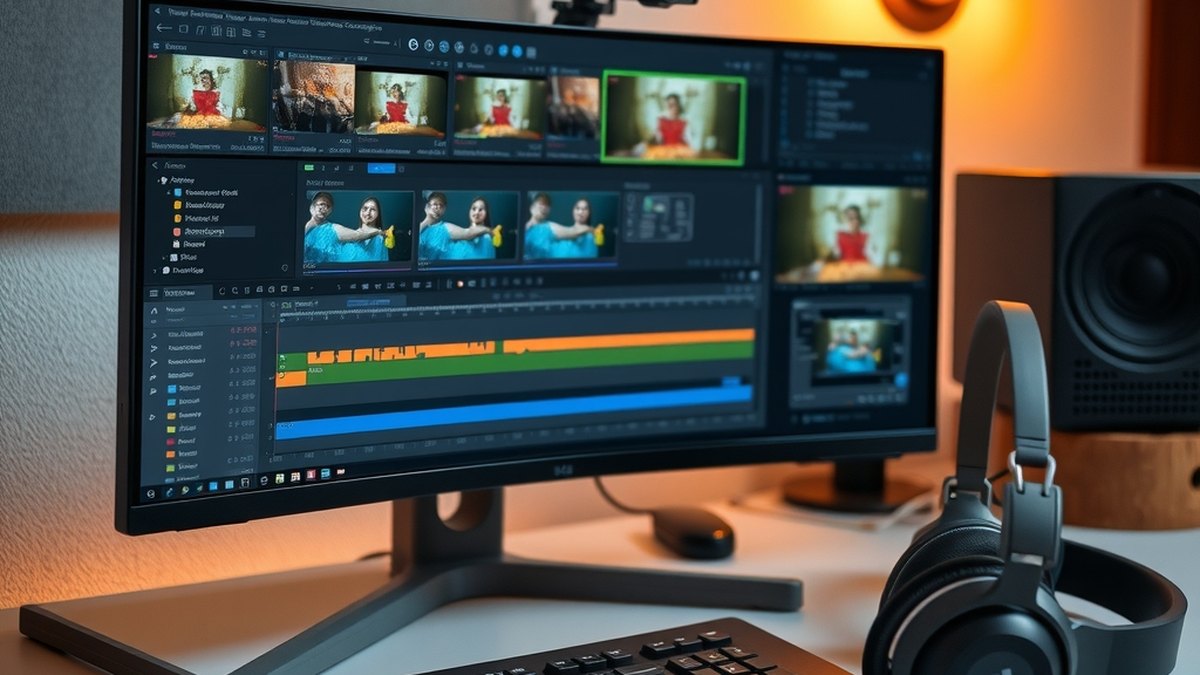
Adobe used its MAX conference on November 10 to bring AI agents into Creative Cloud, including a Premiere assistant that carries out multi-step edits from a text request. The features are in beta, which means access, limits and credit costs can still change. This guide covers how to get started, what the tools do, and how to test them without risking client work.
What Adobe Announced
The new capabilities sit inside a bigger push. Adobe is rebuilding Firefly as an AI creative studio built around a Creative Agent, where you describe a goal in plain language and the agent coordinates tools and models. According to Creative Bloq, you can review the agent's plan before it begins, choose a model or leave selection on automatic, and step in at any point.
That agent is expanding into Illustrator, Premiere, InDesign, After Effects and Frame.io. In Premiere, the assistant handles tasks such as applying an effect to every clip in a sequence, tracking a masked object frame by frame, and adjusting colour and exposure across a sequence in one step. After Effects gets an assistant that can interpret an inherited project, debug expressions, and generate images and video.
Step 1: Get Into the Beta
Adobe has not published pricing or regional availability for these features, so start by checking your own account.
- Update the Creative Cloud desktop app.
- Install the Premiere beta from the beta apps section.
- Open a project and look for the assistant and Generative Remove. If they do not appear, your plan or region may not be included yet.
Adobe has not said which plans include the beta, so do not assume a standard subscription covers it.
Step 2: Use a Throwaway Project
Test on a copy, not on client work. Duplicate a short sequence, save it under a new name, and use that file for every experiment. Because the assistant can change many clips at once, a copy gives you an easy way back. Treat the first sessions as evaluation, not production.
Good first requests are narrow and checkable, such as adjusting exposure across a sequence or applying one effect to every clip. Review the result clip by clip before accepting it, since a bulk edit that is slightly wrong is slower to fix than one you did by hand.
Step 3: Try Generative Remove
Generative Remove deletes an object from a shot. The steps are short.
- Draw a mask around the object.
- Track the mask through the shot.
- Click Remove.
The limits are tight. According to cut.pro's reporting, clips must be between 480p and 1080p, with no HDR, up to 30 frames per second and no longer than 10 seconds. Processing happens in the cloud and uses generative credits. An Adobe team reply cited in that article gives 40 credits per second, so a 10-second clip would use about 400 credits. That figure comes from a community reply rather than an official price list, so verify it against your own credit balance.
Step 4: Watch Costs and Rights
Before relying on the tools, check three things.
- Credits: Run one short clip and note how many credits it uses, then multiply for the footage you expect to process.
- Resolution: Footage above 1080p or in HDR falls outside the stated limits for Generative Remove.
- Licensing: Adobe's iPhone music library is limited to personal, non-commercial use, with up to 60 seconds of each track per video. Monetized, sponsored and client work are excluded, and Adobe points those users to Adobe Stock Audio.
What Is Still Coming
Adobe previewed local Model Context Protocol integrations that would let third-party agents work with native Photoshop, Illustrator, Premiere and After Effects project files while keeping layers and sequences editable. The closed beta is planned for early 2027, and Adobe has not confirmed which outside agents will be supported. Always-on agents, which handle recurring tasks such as drafting social posts for approval, are also preview-only.
Why It Matters
Video editing is full of repetitive work, and an assistant that can apply a change across a whole timeline is an obvious fit. But beta software with usage-based credits needs a testing routine as much as enthusiasm. Measuring time saved against credits spent, on real footage with a safe backup, is the only reliable way to know if it pays off.
Creative teams should also decide in advance who reviews AI edits. An assistant can move faster than a person can check, so a simple rule of reviewing every automated change before export keeps speed from becoming a quality problem.